Searching OIDs
MIB Viewer's database covers over 12,000 MIBs and 1,600,000 OIDs. Finding the one you need can be the hard part. This guide covers four ways to narrow it down: starting from a real device, searching by name or OID, searching inside a specific MIB, and filtering a MIB's object list by type.
Starting from a real device: sysObjectID and the enterprise number
If you have a device you can reach over SNMP but don't know which vendor MIBs it uses, query sysObjectID first.
Every SNMP-speaking device implements sysObjectID (OID 1.3.6.1.2.1.1.2.0), a standard MIB-II object. Its value is an OID that identifies the device's vendor and usually its product line:
snmpget -v2c -c public 192.168.1.1 1.3.6.1.2.1.1.2.0A Cisco device might answer:
SNMPv2-MIB::sysObjectID.0 = OID: SNMPv2-SMI::enterprises.9.1.516enterprises is 1.3.6.1.4.1, the branch IANA assigns one number per organization from. 9 is Cisco's number. What follows (1.516 here) identifies the product line and varies by model - but the vendor's branch, 1.3.6.1.4.1.9, is now known.
Paste that portion into the search bar at the top of MIB Viewer to land on Cisco's root node, with every Cisco MIB underneath it:
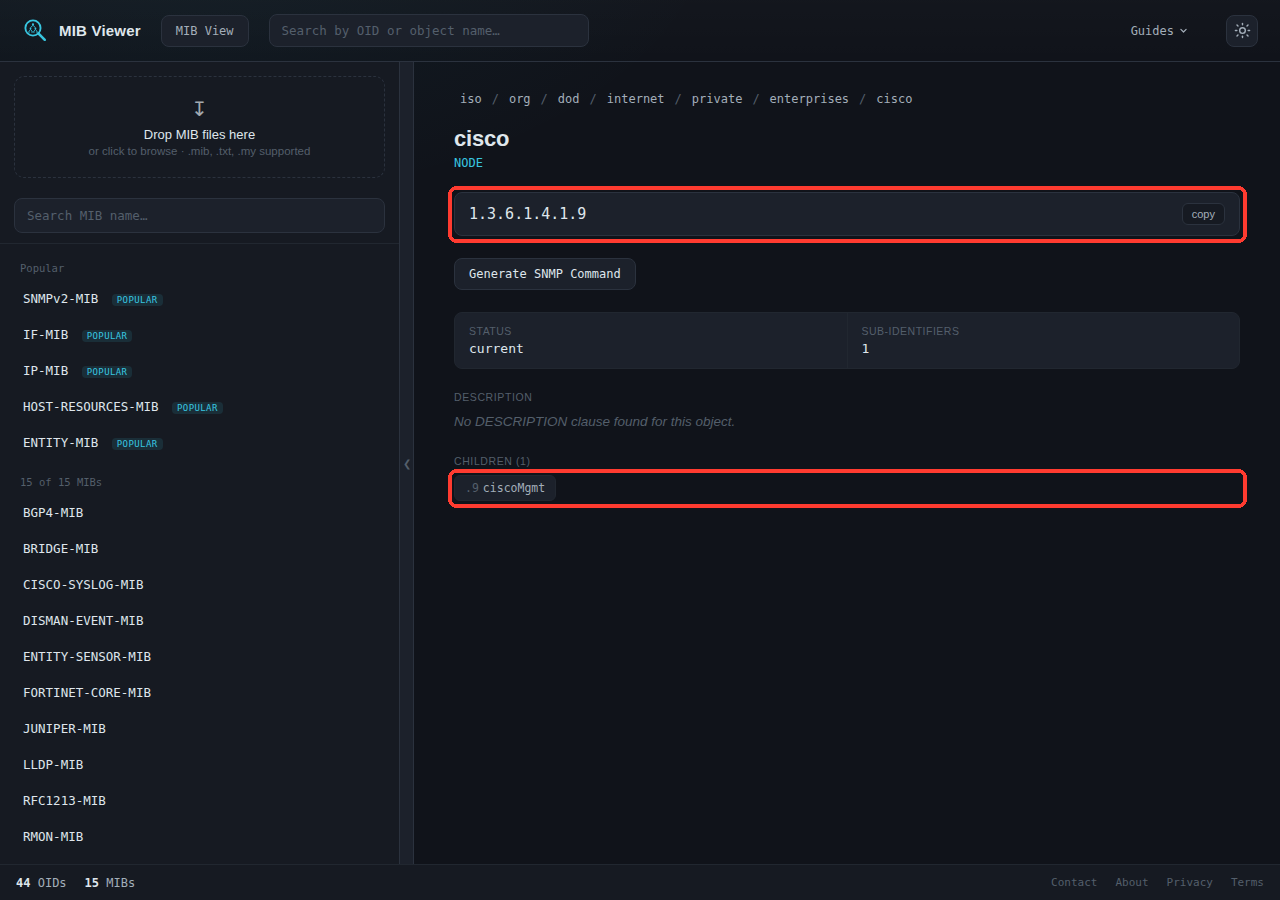
1.3.6.1.4.1.9, Cisco's enterprise node. The breadcrumb shows the path from the root, and its children are there to browse into.From here you're browsing one vendor's namespace instead of the full tree - the right approach when you want to see what a specific device exposes, rather than find one known object. A few other enterprise numbers: Juniper is 1.3.6.1.4.1.2636, Fortinet is 1.3.6.1.4.1.12356, Palo Alto is 1.3.6.1.4.1.25461 - though querying sysObjectID directly is more reliable than memorizing numbers.
Using the search bars
The search box at the top of every page ("Search by OID or object name") searches live as you type, matching a full or partial object name, or a full or partial OID.
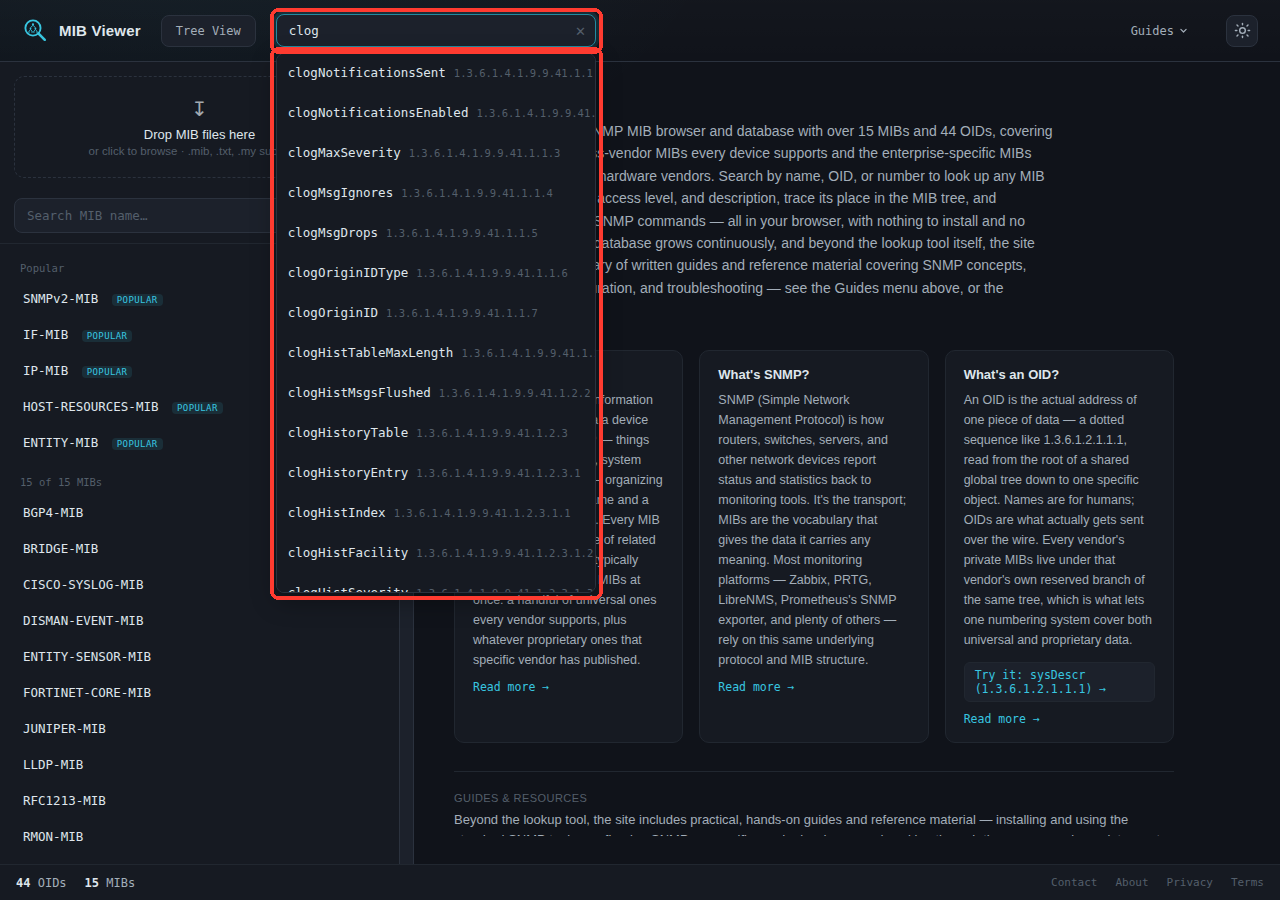
clog matches every object across every loaded MIB whose name contains it, with each result showing its full OID.- Partial names match anywhere in the name, not just the start.
histmatchesclogHistoryTable. - A numeric query is treated as an OID prefix.
1.3.6.1.4.1.9.9.41returns everything under that branch, not just an exact match. - It searches names and OIDs, not description text. Description fields are long, and matching them tends to return a wall of unrelated results. If you know what something does but not its name, browsing a MIB's object list directly is more direct - covered next.
The smaller search box in the sidebar searches MIB names only, for jumping straight to a module - typing syslog to reach CISCO-SYSLOG-MIB, for example.
Searching inside a MIB you've already opened
Once a MIB is open, the "Search this MIB" box filters its object list as you type.
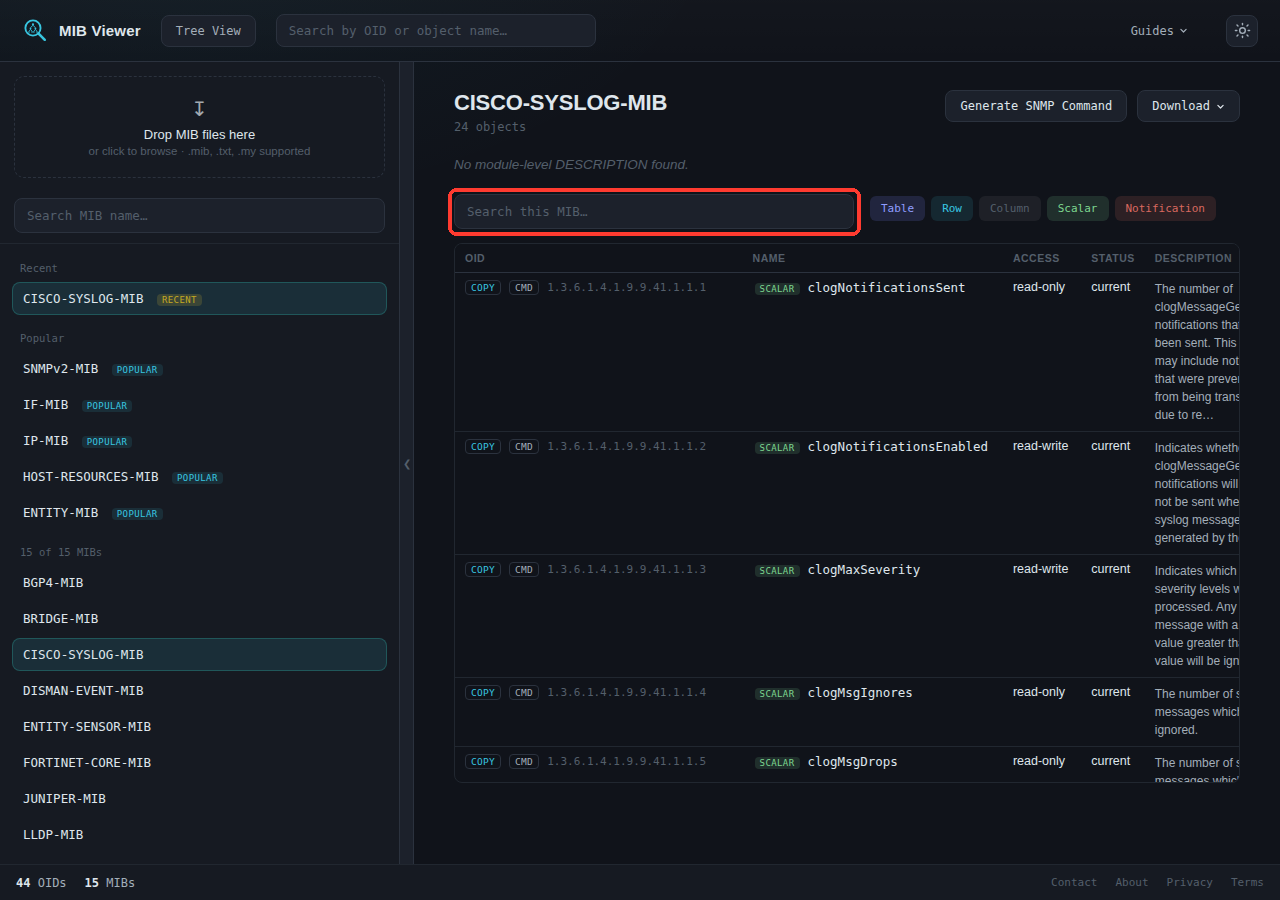
CISCO-SYSLOG-MIB open, unfiltered - 24 objects.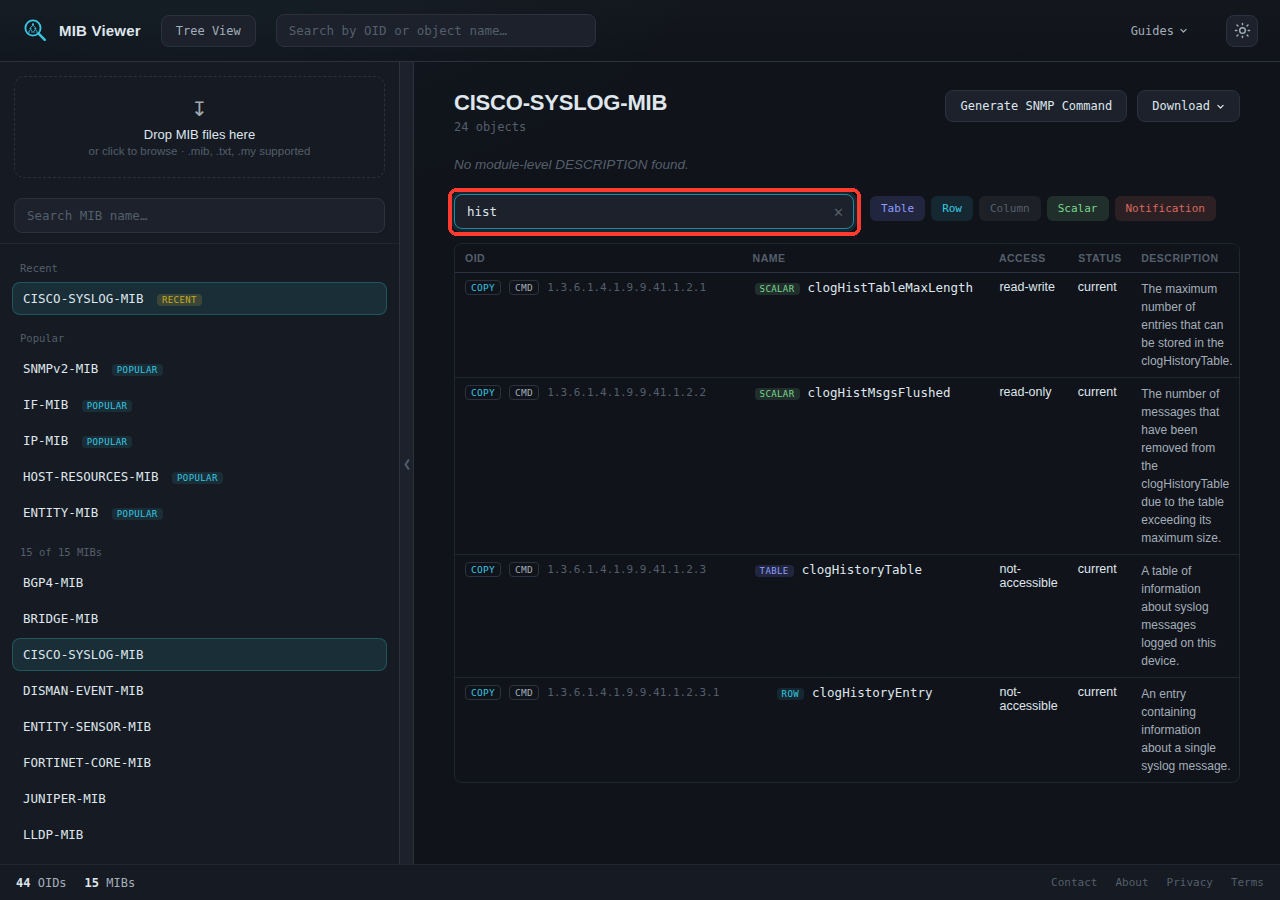
hist narrows the list to the history table, its row definition, and its columns.This box matches against name, OID, and description text. Searching severity matches clogMaxSeverity by name, and also matches any object whose description mentions severity.
Narrowing by type: finding every trap in a large MIB
Name search finds a specific object. To see every object of a given kind - every notification a MIB can send, for instance - use the type filters above the object table.
Every MIB view shows a filter button for each object category present in that MIB. All are active by default:
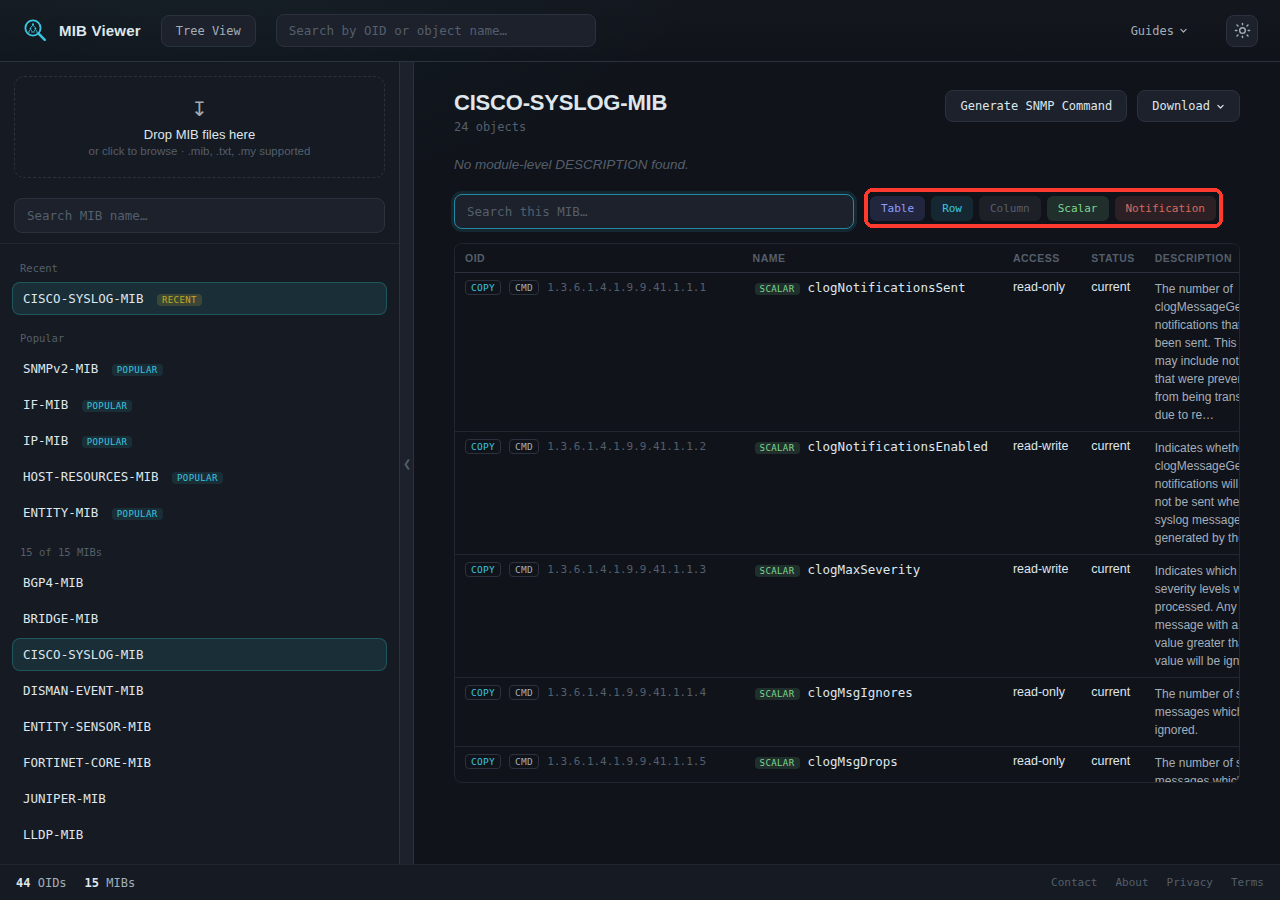
Click a button to hide that type. To isolate notifications, turn off every filter except Notification:
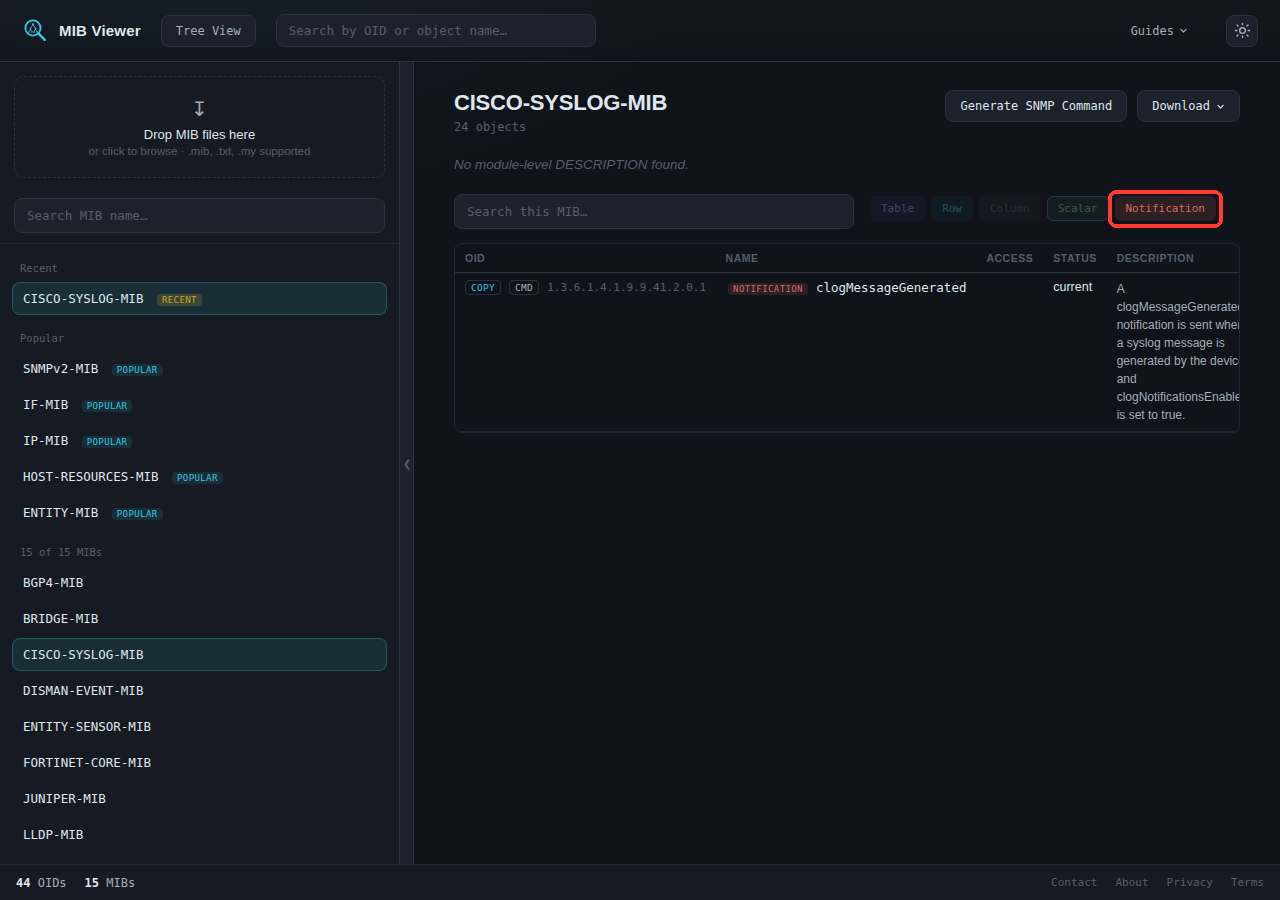
CISCO-SYSLOG-MIB's 24 objects, one - clogMessageGenerated - is a notification. The rest are scalars and a table.Most MIBs define far more pollable values than events, which is why this filter is useful in a larger module. The same approach works for any category: isolating Table shows a MIB's structural tables; isolating Column shows every field across every table.
These four approaches - querying a device for its enterprise number, searching by name or OID, searching within a MIB, and filtering by type - cover most of what's needed to go from an unfamiliar device to a specific OID.